Guide
How to Split a STEP Assembly Into Separate Part Files (Free, Online)
No CAD software. No SolidWorks tricks. No install.
If you've ever had an assembly STEP file with dozens of parts and needed to send just one component to a machine shop, 3D print a single bracket, or reuse one part in a different design — you already know how annoying this usually is. Most CAD software makes you fight through multi-step export dialogs, and some (like SolidWorks) simply refuse to separate sheet-metal bodies at all without a workaround.
CAD Viewer does this in three clicks, for free, directly in your browser.
Why you'd need to do this
- Quoting a single part — a supplier or machine shop only needs the one component you're sending out, not your entire 89-part assembly
- 3D printing one piece — you only want to print the bracket, not the whole mechanism it belongs to
- Reusing a part — pulling one standard component out of an assembly to use in a new project
- Sharing without exposing the whole design — sending a single part without handing over your full assembly
The usual (painful) ways
Most CAD tools technically support this, but it's rarely simple:
- SolidWorks requires manually converting each body into a component first — and it commonly breaks on sheet-metal bodies with flanges
- Siemens NX requires digging into the Export STEP dialog's Advanced tab and manually enabling "External References"
- Third-party converters (like reaConverter) can do it, but they're paid desktop software you have to install
- None of the common free "online STEP viewers" actually offer this — most only let you look at the file, not pull parts out of it
How to do it with CAD Viewer
- 1
Upload your assembly
Go to cadviewer.xyz and drop in your assembly STEP file (or click to upload)
- 2
Auto-detect the parts
The viewer automatically detects it's a multi-part assembly and shows every component
- 3
Disassemble the view
Use the disassemble view to visually separate the parts from each other
- 4
Select the part you need
Click the specific part you need
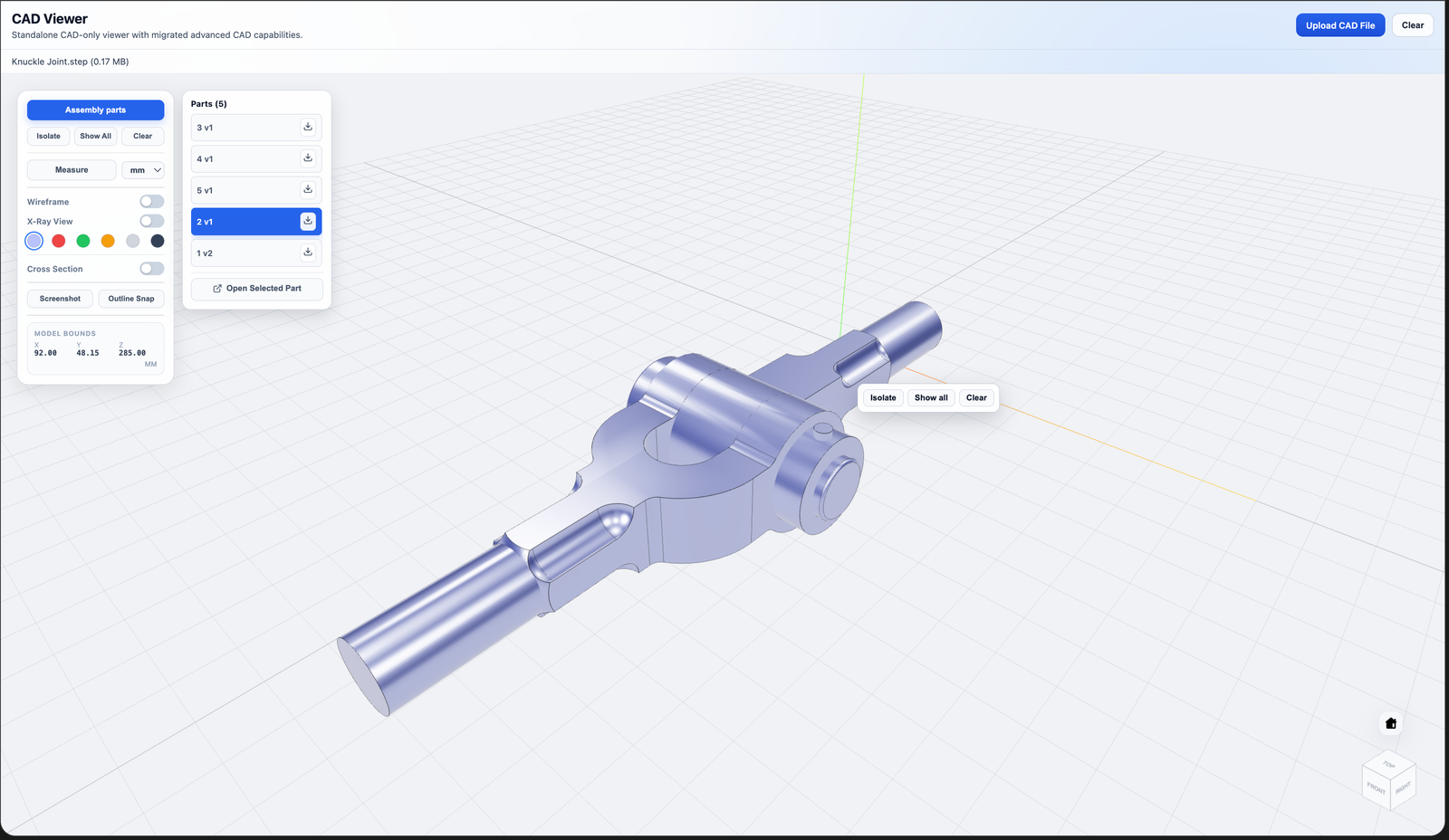
- 5
Export it
Download it — it exports as its own clean, standalone STEP file, ready to send anywhere
That's it. No install, no account, no software license.
Frequently asked
Yes — no signup, no subscription, no watermark on exported files.
Yes — unlike the common SolidWorks workaround, sheet-metal bodies with flanges aren't a special case here.
STEP, IGES, STL, OBJ, 3MF, BREP, and GLB. STEP and IGES are the ones that carry true assembly/part structure, so those are the best fit for this specific use.
No — it runs entirely in your browser.
No fixed limit like most free viewers (which typically cap uploads at 200–300MB). Larger or more complex assemblies automatically switch to a lighter rendering mode to stay smooth, rather than rejecting the file outright.